A new ship catches your eye, but your active collection is full and you do not want to discard an old favourite. No Man’s Sky has a long-term archive for that situation. The important catch is that preserving a ship is not the same thing as preserving everything in its cargo hold.
Before opening an archive confirmation, decide what you want to keep using, what you want to keep collecting and where the loose items will go. This is a preparation guide based on Hello Games’ documented system, not a claim that a particular save has been tested.
Separate the active fleet from the collection
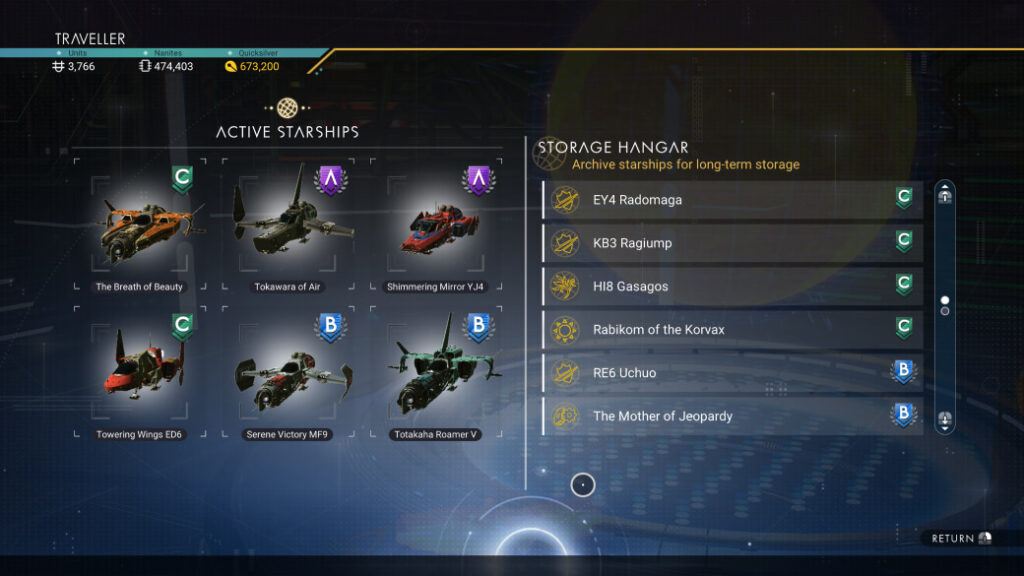
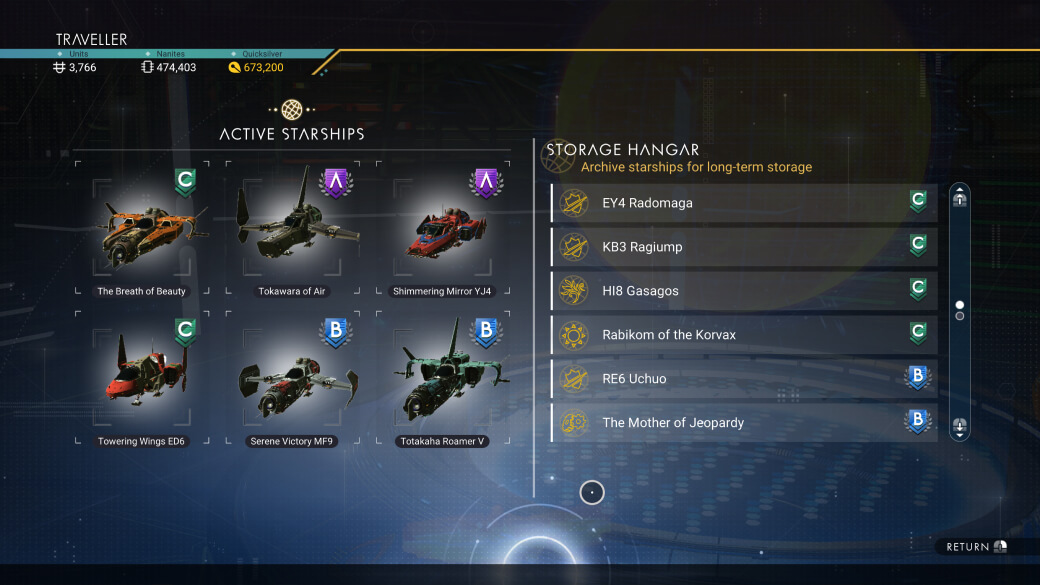
The Worlds Part II notes describe the starship archive at the fleet-management terminal on a freighter’s bridge. It stores up to 18 ships outside the active fleet. Reactivation requires an available active-fleet slot.
For your own collection, give each ship a reason to stay active: perhaps it is your regular traveller, a specialist you are about to use or the one whose appearance you enjoy most. A ship kept for sentimental or collecting reasons can be a candidate for storage without becoming unwanted.
Move the cargo before you move the ship
Archived ships retain installed technology, but the developer explicitly says loose cargo is purged. Treat that as a pre-confirmation check, not a surprise to investigate afterwards.
Open the intended ship’s inventory and account for every loose item. Move what you want to retain into an available destination, then inspect that destination. If you have not made enough room, stop and organise storage first. Renaming a ship “stored” or taking a screenshot does not move its contents.
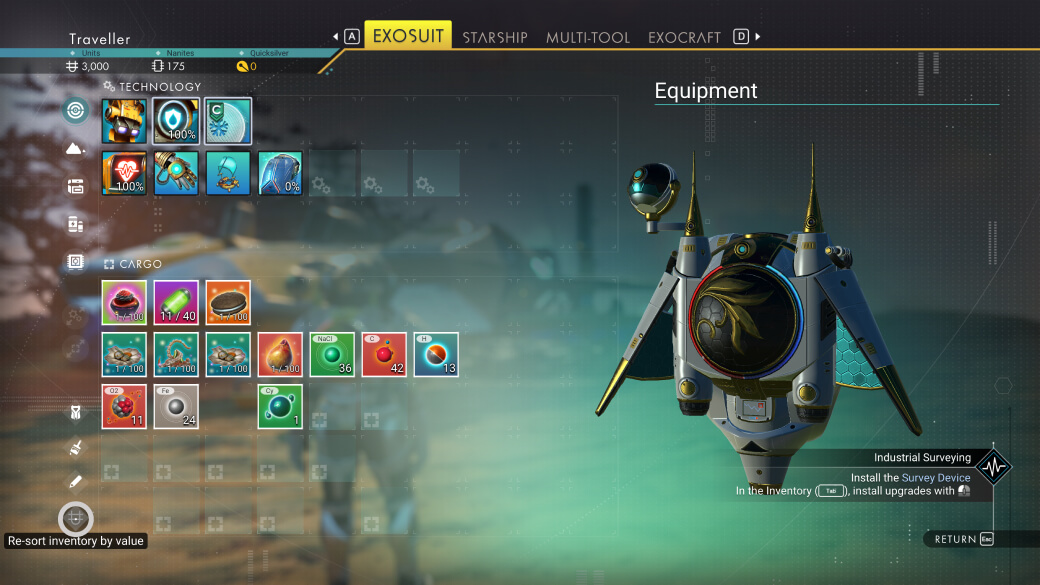
The screenshot below shows the distinction between equipment and cargo in an exosuit inventory; it is not the ship-archiving screen. In your save, perform the check on the specific ship you are archiving. Avoid using a familiar-looking inventory page as evidence that you selected the right vehicle.
Archive one item, then verify the result
Start with a single, unmistakably identified ship. Compare its name and appearance in the archive list after the operation. Keep a small collection note if several ships have similar names: what it is, why you kept it and whether it is active or stored.
If you cannot reactivate it later, inspect active capacity before assuming the archive lost the ship. Do not perform unrelated exchanges or deletions while trying to diagnose an unclear result. For an unexplained missing entry, keep the platform, game version and relevant screenshots for the game’s support channel.
Multi-Tools use their own archive
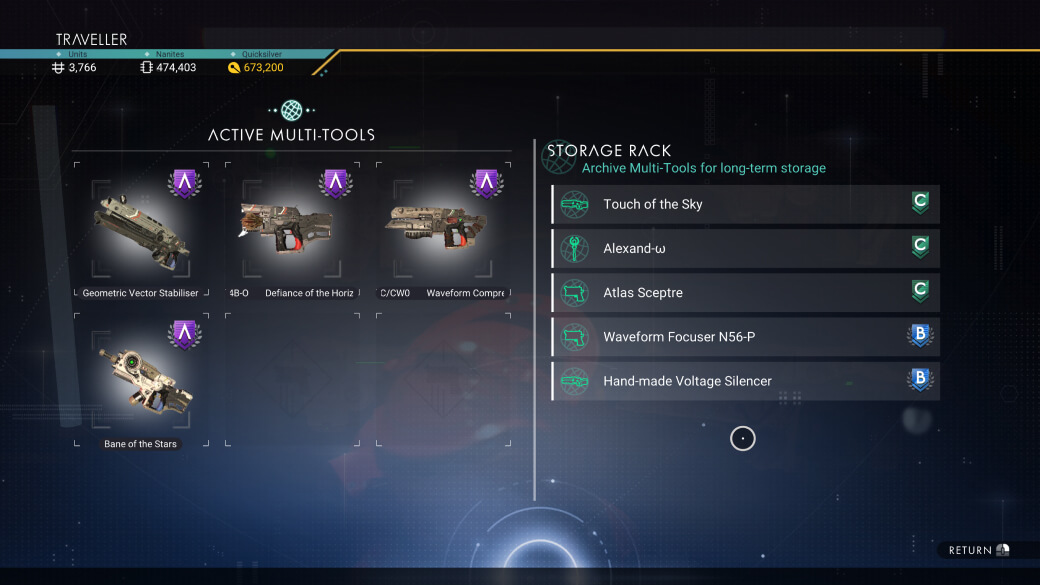
The same update describes Multi-Tool storage through the buildable Weapon Rack, with space for 18 archived tools. Installed technology is retained; restoration needs room among carried equipment.
Keep that collection separate in your notes. “I made space” is incomplete if the space is in the wrong collection. A brief check of item type, selected item and destination is more useful than rapidly repeating the operation.