Before anyone buys a server subscription, ask everyone to send the exact edition name from their game. A Windows computer alone does not tell you whether its owner launched Java or Bedrock. The fastest useful check is compatibility, followed by the server and account requirements. This guide covers the standard official multiplayer routes; it does not promise support for third-party cross-edition bridges.
| Group | Standard edition choice | Before subscribing |
|---|---|---|
| Windows + console | Bedrock on compatible devices | Confirm the console online requirement |
| Windows + Mac Java group | Java on both computers | Confirm everyone launches the same release |
| Java + Bedrock | Not compatible through standard Realms | Agree on one compatible edition first |
Make a three-column list for your group
Record player, device and edition. Java is the desktop edition for Windows, macOS and Linux; Bedrock spans supported Windows, console and mobile devices. Two people saying they play on PC can still be using different editions. Conversely, different devices can play together when they use the compatible edition and service.
For example, a Windows friend joining a console friend should check that the Windows game is Bedrock. A Windows friend joining a Java group on Mac should launch Java. These are edition choices, not reasons to buy a second subscription immediately. Confirm what each person already owns and can launch before making a shopping list.
A Realm does not remove the edition boundary
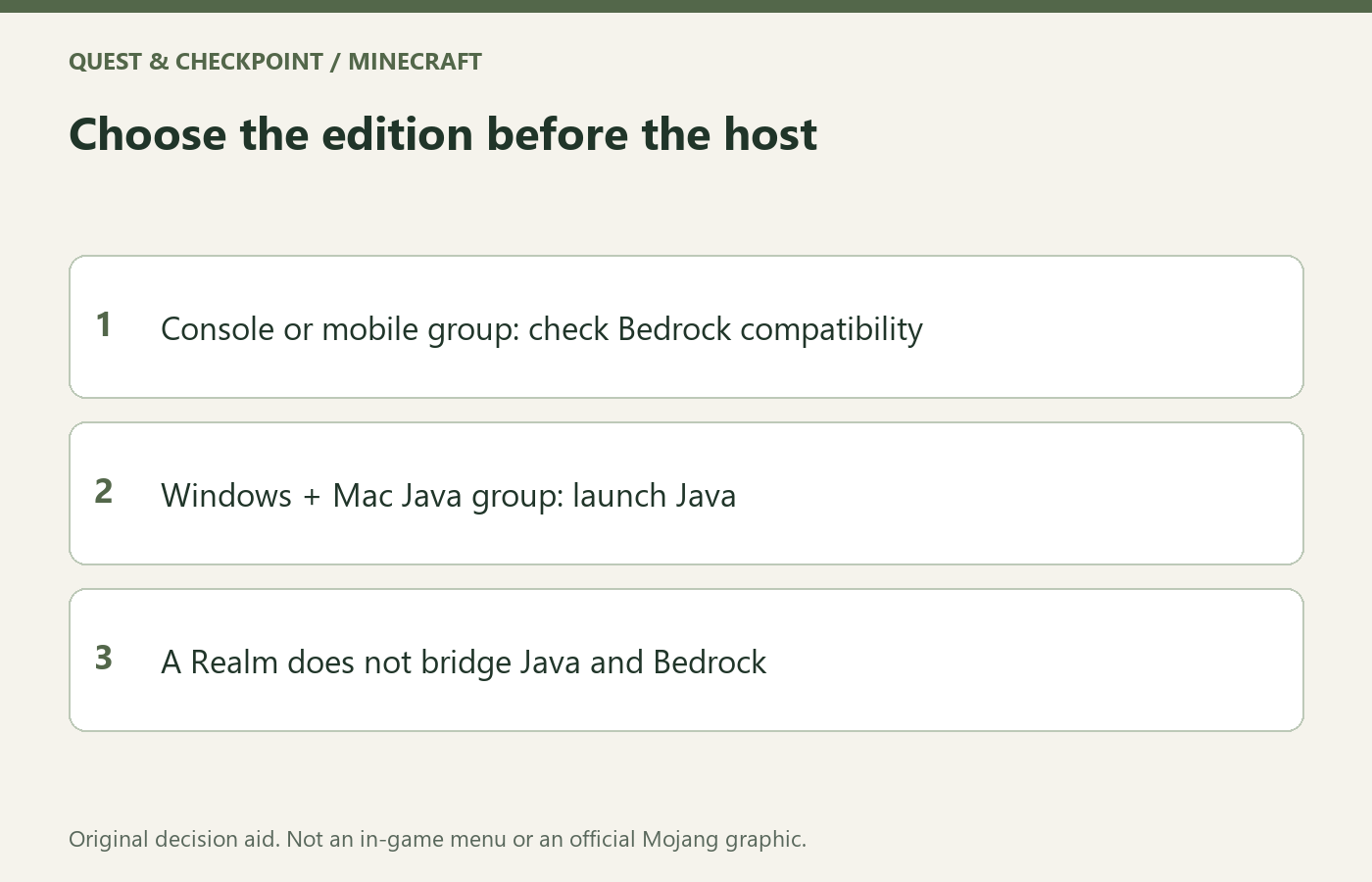
The current Realms page explicitly keeps Java and Bedrock players in their respective editions. Bedrock Realms supports its compatible devices; Java Realms supports Windows, macOS and Linux. A Realm is convenient hosted multiplayer, not an official translator between the two editions. Buying the wrong kind will not fix an edition mismatch.
Choose the host only after this check. For a group that wants access when the owner is offline, Realms is one option. Compare the concurrent-player allowance with the people who will actually play together, rather than the size of your entire invitation list. Invited members do not each need their own Realms subscription, but they still need the relevant game and any applicable platform access.
Separate the bill from the connection problem
Console online multiplayer can require a platform subscription in addition to the game or Realm arrangement. Check the current requirement on that console before assuming the Realm price is the entire cost. We have intentionally omitted a price table: region, platform and plan are better checked at the actual checkout than copied from an old guide.
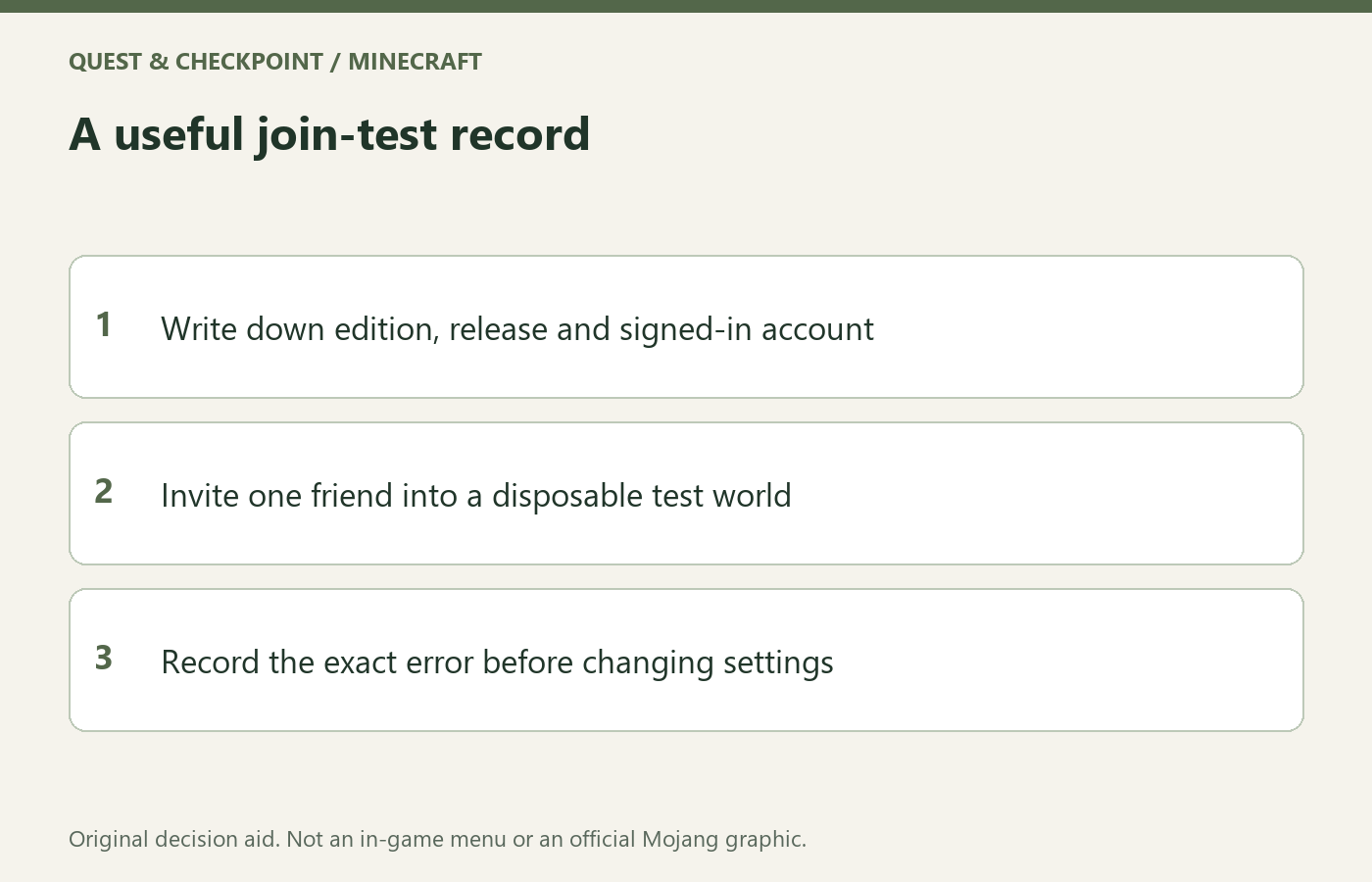
If edition and server type match, write down the exact error instead of repeatedly sending invitations. Ask which account is signed into the game and whether multiplayer access is restricted on that account. Do not remove family settings wholesale to troubleshoot. The helpful next step is the specific account or platform support route indicated by the error, not another purchase.
Run one simple join test before moving your main world
Agree on the same supported release and avoid using a preview or snapshot as the default group test. Development builds have their own restrictions and can complicate a diagnosis that began as an ordinary invitation problem. Back up an important world before changing its version or moving it to a new hosting setup.
Use a disposable test world and invite one person first. Record whether the invitation arrived, whether joining worked and whether both players could move in the same world. Add the others only after that basic path succeeds. Your final group message can be concise: edition, release, host, invitation method and required console access. Keeping those decisions explicit prevents a compatibility problem from becoming five different guesses in chat.